How to build an author website
A step-by-step guide (for people who don't know where to start)
Let’s start by calibrating expectations: I’m the kind of person that, if you told me my laptop was powered by fairy dust and the hopes and dreams of a thousand daffodils, I would know you were taking the proverbial… but I wouldn’t have any solid evidence to the contrary with which to make my argument.
I know my way around the internet. I have opinions about my favourite writing software. I can troubleshoot ever-so-slightly beyond CTRL+ALT+DELETE or “have you tried switching it off and back on again?” I even have middling proficiency in SEO and I know a couple of HTML commands.
But… that’s it. That’s the sum total of my tech knowledge. And I created this entire website entirely on my own, with the help of a couple of YouTube tutorials and a bunch of Google searches.
It’s also not the first—or only—website that I’ve created.
So, if I can do it, I promise you can do it, too. And I also promise that this guide is aimed at authors like me, to guide you through the process using the steps that I’ve used, and explained in terms that I understand.
Full disclosure: it’s focused on getting you set up with a WordPress website specifically. That’s very deliberate—even though I know there’s a larger learning curve with WordPress, and even though a WordPress website can be slightly more expensive than some of the other options available. I didn’t start with a WordPress website—I started with Wix (way back in, like, 2009? I think?), then moved to Weebly, then discovered that there is absolutely no way to migrate a Weebly website to another webhost with better functionality when my ecommerce needs outgrew the site I’d had for so many years. It was a bit of a nightmare, to say the least, and I’d like for you to avoid that pain. Building on WordPress from the outset lets you start as small as you need and lets your website grow when you do. It’s also (anecdotally) better for online visibility, because 40% of the entire internet is built on WordPress. It’s far, far better to start here than to go with one of the drag-and-drop builders and have to deal with the fallout somewhere down the line.
I really wish I’d started with WordPress, is my point, and I don’t want you to share those regrets. Plus, once you get a bit of momentum going, it’s genuinely not as user-unfriendly as it seems at first. And we’ll go through the process step-by-step, so that, by the end of this post, you’ll be ready to welcome visitors to your very own digital front porch where readers can find out who you are and what books you write—all in your own style.
Let’s get started.
Contents
What’s an author website, anyway?
Before we dive into buying domains and wrestling with plugins, let’s answer the biggest question first: what exactly is an author website?
An author website is a writer’s online home base. It’s your corner of the Internet where fans, potential readers, agents, event organisers, or random visitors can come to hang out (virtually) and learn all about you and your work.
Sure, social media is great for quick updates and chats—but it’s rented space. You’re not in control of the factors that dictate who sees what and when, and the algorithms that govern a post’s visibility are notoriously fickle. They’re also subject to updates that can kill your reach overnight, and rules changes that can see posts removed, or even lock you out of your account. That’s not to say that you shouldn’t leverage social media as part of your overall online presence (if you want to), but it is to say that relying on social media as your only online presence is a risky strategy.
But your website is yours. You control what you share and how long it remains visible. You curate the message that it shares with visitors. It’s a permanent fixture (for as long as you want it to be): a central hub around which all of your other online activity orbits.
Visitors to your site will be looking for certain types of information—a welcome message that gives them a sense of who you are; details about your books and where they can find them; easy ways to get in touch or follow along. But none of this needs to be complicated or showy—it just needs to be there.
So let’s look at how to make that happen.
Understanding domain names
Let’s start by talking about domain names. If your website is your online home, then your domain name is its street address—the thing people type into their browser to find you. It will look something like www.yourname.com or www.yourawesomebooks.co.uk.
When you sign up to a website host (more on this later), they will assign you a URL (Uniform Resource Locator, for anyone who likes to know what the initials stand for)—which will use the host’s domain name. It’ll be something catchy like fje.dnz.mybluehost.me, which is what mine gave me. If you click that link, it will take you right back to my website, though—www.rbkelly.co.uk—because I purchased the domain name rbkelly.co.uk, and I’ve linked it to that messy bluehost.me URL. The website lives at fje.dnz.bluehost.me, but it’s accessed via the much more easily memorable rbkelly.co.uk.
You’ll also need to purchase a domain name that recognisably links to your author persona. You could keep using the messy URL that your webhost assigns you, but that’s honestly not a good choice for an author website and is likely to put potential visitors off if they see it.
Where do you get a domain name?
You purchase domain names from companies called registrars—places like GoDaddy, Namecheap, or Google Domains are popular and pretty user-friendly (for a certain value of “user-friendly”). I use GoDaddy and have done for years. The interface is, I won’t lie, slightly terrifying, but the registrars tend to recognise that most of their users have a similar level of coding experience to me, and they helpfully walk you through all of the vaguely unsettling tasks you need to perform to set everything up. When it comes time to link your domain name and your URL, both your webhost and your registrar will have detailed instructions on how to do this.
Buying a domain usually costs around £10-20 per year, though it can be much higher for in-demand domains (if they’re even available). So it’s more like renting than owning, but it’s not a high-cost investment at least. Unless your author name is very similar to a high-profile celebrity, though, you’re not likely to run into any difficulties here.
Choosing your domain name: keep it simple and memorable
Your goal here is to pick something easy to spell, easy to remember, and ideally connected to your author brand. Using your real name or pen name is usually a safe bet because it ties directly to you. It’s usually best to avoid weird spellings or complicated words—save your creativity for worldbuilding, and keep things as simple as possible in your domain name.
What about other extensions (.com vs .co.uk and so on)?
Here’s where things get interesting—and occasionally frustrating. The .com extension is king worldwide and generally the most recognized and trusted by readers everywhere. Even if you’re UK-based (like me), it’s usually worth spending the extra couple of quid to get a .com address—I have .co.uk, of course, which is… fine and all, but if .com had been available when I was registering my domain name (it wasn’t), I’d have used that instead.
That said, “.co.uk” is by no means the end of the world—just be aware that some people might instinctively type .com first when searching for you, so owning both and redirecting one to the other isn’t a bad idea if budget allows.
There are also plenty of interesting new extensions popping up (.author, .book, .writer) but those can confuse people or look less credible at this stage. That might change, of course (though I’m old enough to remember when .tv was the Next Big Thing, and where is it now? Exactly), but for now, your safest bet is to stick with the classic .com or .co.uk while you’re building your foundation.
“If your website is your online home, then your domain name is its street address—the thing people type into their browser to find you.”
What is web hosting and why do you need it?

If a domain name is your address, then web hosting is the actual land or building where your website lives.
What exactly is web hosting?
Web hosting is a service that stores all the files, images, text, and data that make up your website. This information lives on a type of computer called a server. These servers are connected to the internet 24/7 so anyone typing in your domain name can access your site at any time.
Without web hosting, your website wouldn’t be visible online because there’d be nowhere to store your content or show it to visitors.
How does web hosting work?
When someone types your domain into their browser (like www.yourname.com), their device sends a request to the server where your website files are stored. The server then sends those files back to the visitor’s browser, displaying your website. This entire process happens in seconds.
Different types of web hosting
There are several kinds of web hosting, but you’ll mostly deal with these three:
- Shared Hosting: This is the most common and affordable option. Your website shares server space with other websites—like renting a room in a shared house. It’s budget-friendly but can sometimes be slower if other sites use too many resources.
- VPS (Virtual Private Server) Hosting: A step up from shared hosting. You still share a physical server but get dedicated portions of its resources. It’s like having your own apartment in a building rather than just a room.
- Dedicated Hosting: You get an entire physical server all to yourself. This is usually overkill for new authors due to cost and complexity, but it’s an essential investment for very high traffic sites.
For most first-time author websites, shared hosting is perfectly fine and keeps costs low while you grow.
Choosing your web host
There are many web hosting companies out there (and I do mean many). I use Bluehost and it’s… fine. I’m happy enough with the service I get (though some of my pages can be a bit slow to load), but there’s also Hostinger, SiteGround, HostGator, and many more. I chose Bluehost after checking out user reviews and reading a few magazine articles, but I nearly went with Hostinger for the same reasons. You’re not locked into this forever, but it can be an absolute pain to change hosts once your website is up and running, so it’s worth taking some time to decide.
- Look for good customer support (preferably live chat or phone)
- Check uptime guarantees (aim for 99.9% uptime or better)
- Ensure they offer easy WordPress installation—many have “one-click” installers
- Consider pricing carefully; some hosts offer discounts initially but raise prices on renewal
- Read reviews from other users
Why WordPress loves good hosting
WordPress powers about 40% of all websites worldwide because it’s flexible and powerful—but it does rely heavily on good hosting to run smoothly.
A slow or unreliable host can make your site sluggish or even unavailable sometimes—which frustrates visitors and can seriously damage your search engine rankings.
Starting with reputable hosting means fewer headaches later when you want to add features like an online store or newsletter sign-ups. Ask me about the time I had to move my entire website from Weebly to WordPress manually because it was the only way to get the online store features I wanted. Second thoughts: don’t ask me. It’s still too raw…
How much does hosting cost?
Expect around £3–£10 per month for decent shared hosting plans suitable for new author sites. Some hosts offer annual plans that reduce this cost slightly. You can, of course, spend a lot more on this, but you absolutely don’t need to: your author website doesn’t need a lot of bells and whistles at this point, and you can always upgrade your plan for more functionality if you need to down the line.
Some webhosts offer a free plan but… it usually doesn’t allow you to use your own domain name (meaning you’re tied to the messy fje.dnz.mybluehost.me and can’t link it to rbkelly.co.uk). It’s really not worth saving this money, to be brutally honest. Remember: this is an investment in your online presence.
Why WordPress? (A reprise)
If you’ve already started thinking about your author website and you’ve been looking around online for where to begin, you’ve almost certainly come across platforms like Squarespace, Weebly, and Wix. Those are the bigger names, but there are a lot more besides—and at first glance, they probably look more user-friendly than WordPress. Most have a very straightforward drag-and-drop functionality, which, admittedly, does make website building less fiddly (though it also offers limited customisability, which is a headache when your content doesn’t quite fit… but I digress).
So, why am I so passionately encouraging you to forgo these easier options and dive in at the deep end with WordPress?
Great question. And it needs a proper answer.
What is WordPress?
First off, WordPress is not just a website builder—it’s a content management system (CMS). What’s the difference? Here’s a quick rundown:
A website builder is an all-in-one platform designed to let you create a website quickly and easily, often without needing to write any code.
- Usually comes with drag-and-drop interfaces, pre-designed templates, and hosting included
- Examples: Wix, Squarespace, Weebly
- Often a straightforward option for beginners or small businesses who want to get online fast
- Usually includes built-in tools for design, SEO, e-commerce, etc
- Less flexible if you want deep customisation or advanced features
A CMS (Content Management System) is software that lets you create, manage, and modify digital content on your website.
- More powerful and flexible than most website builders but requires some technical know-how to set up and customise
- Examples: WordPress, Joomla, Drupal.
- Offers the option to install themes and plugins so you can extend functionality extensively
- Often used for blogs, news sites, large business sites—anywhere content needs frequent updating or complex organisation.
- Typically requires separate hosting (you choose your web host) and more hands-on management
It might help to think of your CMS as the engine under the bonnet that powers your site. It lets you create and manage your content—pages, images, text—without needing to write code or be a tech genius.
WordPress.org (the self-hosted version I’m talking about) powers over 40% of all websites worldwide. That includes personal blogs, big news outlets, online stores—you name it.
The learning curve
Here’s the honest bit: WordPress isn’t quite as simple as dragging and dropping blocks like some other platforms. You’ll need to spend a bit of time learning how to install themes (which control your site’s look), use plugins (which add extra features), and navigate the dashboard.
But honestly—don’t let that scare you off. Again: I have the technical ability of a paper bag left out in the rain, and I built this website. There’s nothing particularly intuitive about the WordPress interface, but it’s been around for a long time, and YouTube is just about packed to the gills with instructional videos that show you exactly what you need to do. Here’s the one I used, updated for this year so that you can be sure the advice is current. And once you get past that initial wall of confusion and get into the swing of things, it’s actually no more difficult than the drag-and-drop functionality of the major website builders, but with all the flexibility that they lack. That extra initial effort pays off with a website that’s set up to grow with you.
Scalability for emerging authors
Why is flexibility so important? Well, as an author, your needs will change. Maybe at first you just want a simple page with info about your books and contact details. Later on, you might want to:
- Add an email newsletter signup to build your mailing list
- Sell signed copies or ebooks directly through your site
- Share sample chapters or downloadable content
- Create event pages for book launches or readings
Some of the website builder platforms offer some of these functions (Squarespace is the best of them for ecommerce), but it’s not really what most of them are set up to do, and often you’ll have to upgrade your plan to access the additional features—which are often less powerful and less flexible than what’s available with other providers.
WordPress, on the other hand, is built around the concept of plugins. Plugins are pretty much exactly what they sound like: little bits of extra functionality that you “plug in” to your site as needed, designed to integrate seamlessly with the platform. Because of WordPress’s ubiquity, there are a lot of these—at time of writing, there were over 60,000 free plugins available through WordPress itself, with many more available from third-party developers. Most of these are also free, though most of them offer additional features for a yearly fee. This means that you can quite literally plug in the next layer of functionality once you need it, without having to rebuild from scratch or switch platforms.
Costs: What you need to know
The WordPress software itself is free. Your main costs will be web hosting (see above) and possibly premium themes or plugins if you want advanced features or specific designs. I’ve built most of my site using an ecommerce plan from Bluehost that includes many of the premium ecommerce features I need, plus I splashed out on Elementor Pro so that I could have some of the cooler widgets on my pages. (Elementor is a plugin that offers something very similar to the drag-and-drop functionality of the major website builders—the free version is likely to be enough for most people, but I wanted a couple of specific page features, so I opted for an upgrade.)
What’s the difference between WordPress.com and WordPress.org?
This question does cause a bit of confusion, since WordPress also comes in a done-for-you version in the form of WordPress.com—but you do not want to go down that route, because it eliminates most of the important stuff that makes WordPress such a flexible option.
Bottom line: WordPress.org provides the free, open-source software that you download and install on your own web hosting server. This option gives you complete control over your website—you can customise it fully by installing any themes or plugins you want, modify code, and monetise freely. However, you need to arrange your own hosting and domain name (see above), and handle maintenance tasks like backups and security yourself. (Your webhost may offer these services rolled into your plan, though—mine does.)
On the other hand, WordPress.com is a hosted service where your site is managed for you, but it’s much more limited than the .org version. Your URL will be a subdomain of WordPress.com (www.yoursite.wordpress.com rather than www.yoursite.com) and you’re limited in terms of customisability, especially on the free plans. Effectively, you might as well use a website builder as WordPress.com—you need the WordPress.org to get the full benefits of this powerful software.
Pages you’ll need to include on your site (and why)

We’ll get to the nitty gritty of how to build these pages in just a moment, but for now, let’s run through a couple of the key pages that visitors will expect to find when they land on your website. You can, of course, add to these as you choose, but these three page types are the minimum you’ll need to include.
Home page: Your virtual front door
Think of your home page as the welcome mat. Visitors are most likely to land here first, so it needs to grab attention, quickly communicate who you are and what you do, and incentivise them in some way to stay. “Incentivise them to stay” doesn’t mean you have to give them something tangible—it just has to engage a casual visitor enough that they don’t immediately navigate away.
Your best bet is to keep this page clean and focused. Consider including:
- A clear introduction: Who you are (author name or pen name), your genre or niche, any publications you have, and so on
- A compelling tagline or brief pitch about your books (or future books)
- Eye-catching visuals if you have them: book covers, photos of you (a professional headshot is great, but it doesn’t have to be a professional headshot—photos of you doing the things you love work just as well), even a few stock images related to your writing will work here—the key is not to overwhelm a visitor with a wall of text
- Call to action: make it really easy for a visitor to do what you want them to do next—add links to buy your books, sign up for your newsletter, connect with you on social media, and so on
Your home page needs to look well-thought-out and as though it’s been created with the visitor in mind—but that doesn’t have to mean “slick.” Imagine you were visiting the home page of your favourite author. What would you expect to find there? That’s the kind of vibe you’re going for here.
About page: Tell your story
Readers love to connect with authors on a personal level. The About page is where you share your journey—your background, inspirations, writing style—and why you write. Keep it authentic but concise: this isn’t an autobiography. Your aim here is for engaging storytelling that builds rapport.
But… haven’t you already covered this on your home page? Sort of—your home page should definitely offer an introduction to who you are as a writer, but the About page is where you let a visitor get to know you. That means giving them:
- A sense of who you are beyond your writing
- A glimpse into your process or motivations
- Trust-building details like awards, publications, or notable achievements (if you have them)
- Fun facts, anecdotes, your favourite books, the authors who inspire you, your weird writing rituals—the little details that make people feel as though they’ve got an insider insight into who you are
Books page: Showcase your work
This is often the heart of an author site—the place where readers discover your books. Each title should have its own mini-section with:
- Book cover image
- Brief description or blurb
- Purchase links (Amazon, local bookstores, direct sales)
- Reviews or testimonials if available
But what if you haven’t published a full-length book yet? No worries: this page can evolve with your career and still serve an important purpose right now. For authors who haven’t published a book yet but want to start building their platform, you can use this page to:
- Share information about upcoming projects or works in progress to build excitement
- Include excerpts, sample chapters, or sneak peeks if you have them
- Highlight any short stories, poems, or essays you’ve published in anthologies, magazines, or competitions. Provide links or details so visitors can find your work
- Share writing milestones or goals to engage readers interested in your journey
Contact page
Whether it’s readers wanting to send fan mail, event organizers seeking appearances, or media inquiries, you want to make it as easy as possible for them to get in touch. It’s good practice to have contact details available on every page, but it’s even better practice to also have a dedicated page in the menu that’s easily visible as soon as a visitor lands. You’ll want to include:
- The email address you want them to use (consider using a contact form to avoid spam—though there are varying schools of thought on this; some people hate using contact forms)
- Social media links
- Newsletter signup option (if applicable)
- Your agent’s contact details (if applicable)
Setting up your home page

So. You’ve purchased your domain name and you’ve signed up with a webhost. You’ve got a temporary URL in place (supplied by the host) while you build your website. Next step? Get your first page built. I’m going to assume it’s your home page, because that’s the obvious place to start.
This is the scariest one; the one with the steepest learning curve. This is also the page with the most additional steps, because in order to build your home page, you have to do quite a bit of set-up in your WordPress dashboard, and your WordPress dashboard is… not exactly welcoming to newbies. It looks, quite frankly, as though you could use it to direct traffic in and out of Heathrow, and there’s generally a vague sense that pressing one wrong button is going to destroy the internet. (It’s actually harder to break your WordPress website than you might think, but the user interface does not give that impression.)
So let’s do this step by step.
Step 1: Log into your WordPress dashboard
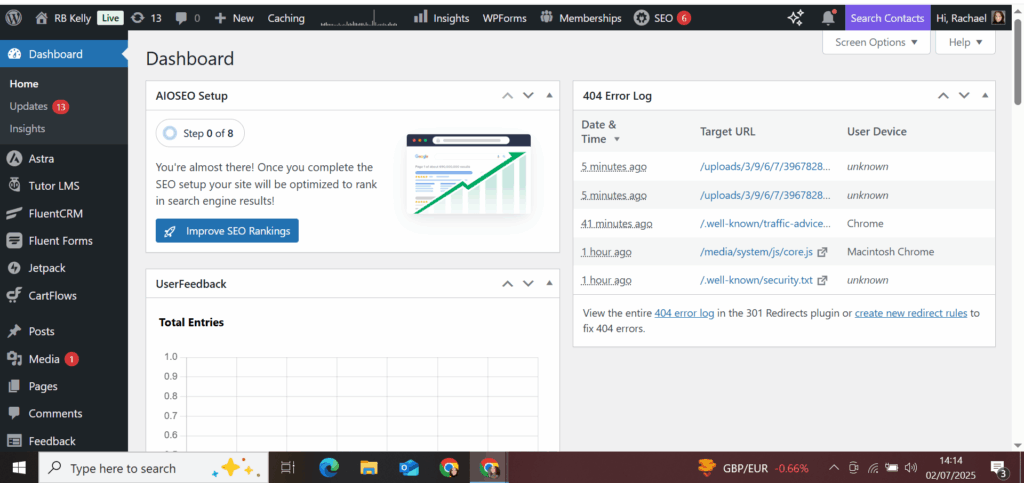
Your webhost will have sent you login details when you signed up. Often, you can log in directly with WordPress by going to yourdomain.com/wp-admin (replace “yourdomain.com” with your actual domain) and entering your username and password to log in.
I’ve found, though, that my webhost (Bluehost) makes me log into their backend system before I can get to WordPress, so you might have this additional step to go through. Either way—whether through yourdomain.com/wp-admin or by logging into your host’s backend and clicking through to edit your site from there—you’re going to find yourself in the WordPress dashboard.
This is the control center of your website. Everything happens here.
Step 2: Choose a theme
Your theme governs the overall look of your website. It offers preset colours, fonts, layout, and design. You can switch between themes fairly easily, even after you’ve built a few pages, but what works for one theme may look a bit rubbish in another, so it’s generally best to pick one that you’re reasonably comfortable with and less likely to change down the line.
You have so many options here. Your first choice is going to be between a free theme or a paid theme (which may come with extra features and support). Honestly? I’ve used the free Astra theme for my website and I have no complaints. Astra’s lightweight (fast loading), easy to customise, and has both free and paid versions. I don’t see any particular reason to pay for a theme, but it’s entirely up to you.
In your WordPress dashboard, look at the menu along the left side and find Appearance. (Sometimes you’ll have to scroll down to find this; it’s a big menu.) Click on Appearance and choose Themes from the drop down.
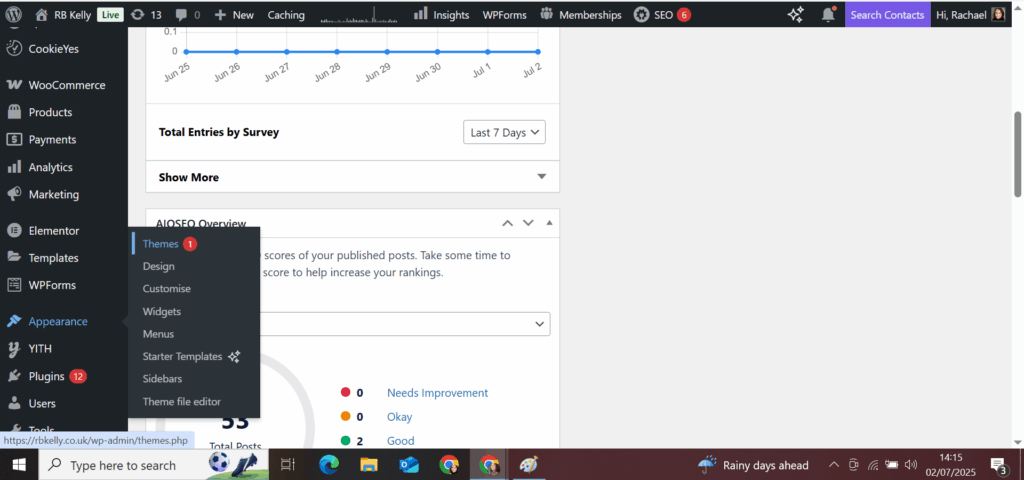
This will take you to a new page.
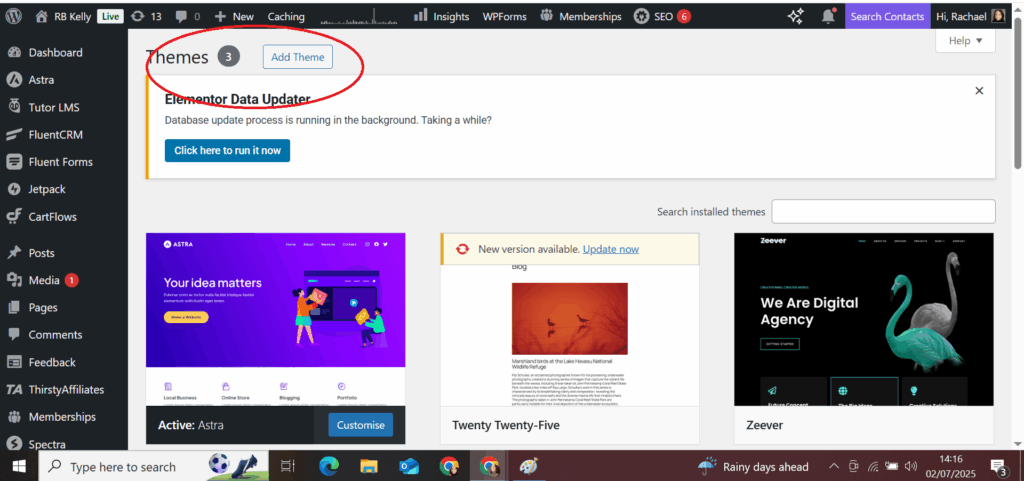
To choose your theme, click on Add New, which will take you to another new page where you can preview some of the many, many themes available. Remember that you can customise these to your heart’s content, so don’t look so much at layout—you’ll very likely change that up once you get started. Think about how the font and colour blends work for how you’d like your website to look.
Step 3: Install and activate your theme
You’ll see from the picture above that I’ve got Astra installed (it’s labelled as Active), but also that I installed a couple of other themes while I was getting started. Astra is the active theme, though, which means it’s the one that I’ve told WordPress to use for my website. You can install more than one theme—it won’t be your theme until you activate it, at which point it becomes the blueprint for your website’s design.
To get a sense of what the theme might look like, you can click the Preview button, which will show you a couple of pre-populated pages created with this theme.
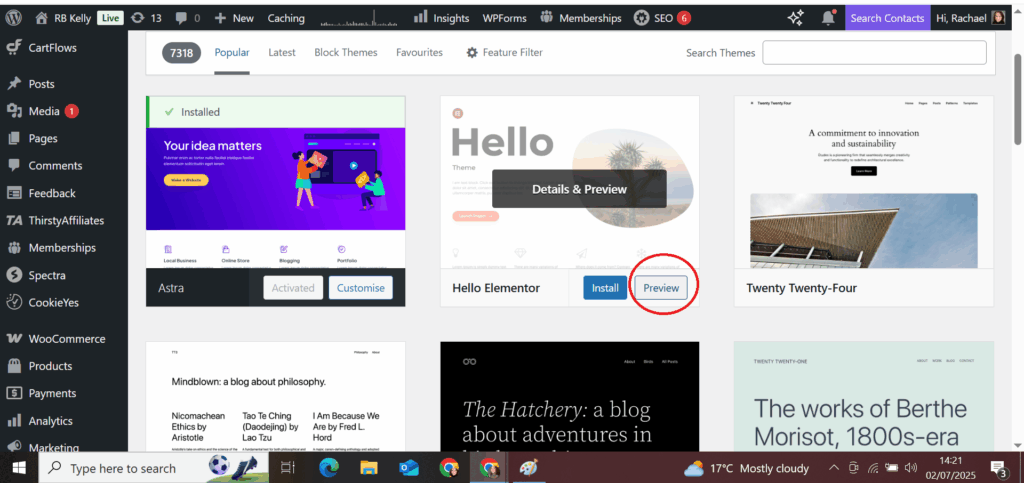
If you’re feeling overwhelmed by the variety on offer—I’d suggest Astra. It’s one of the most popular themes on WordPress for a reason.
Once you’ve made your decision, click on the Install button that appears when you hover over your theme of choice. After installation finishes, click Activate—and, simple as that, the theme is live on your site.
Step 5: Install the Elementor plugin
You can build your website without Elementor, but I tried that and the whole experience sucked. Elementor lets you build pages using drag-and-drop functionality. It just makes the whole process easier.
To install Elementor, go back to your WordPress dashboard (if you get lost, you’ll always find a link at the top of the lefthand menu). Now scroll down the menu until you find Plugins. (Ignore the number 12 beside Plugins on my dashboard menu—it just means I’ve got plugin updates I ought to have dealt with before now.)
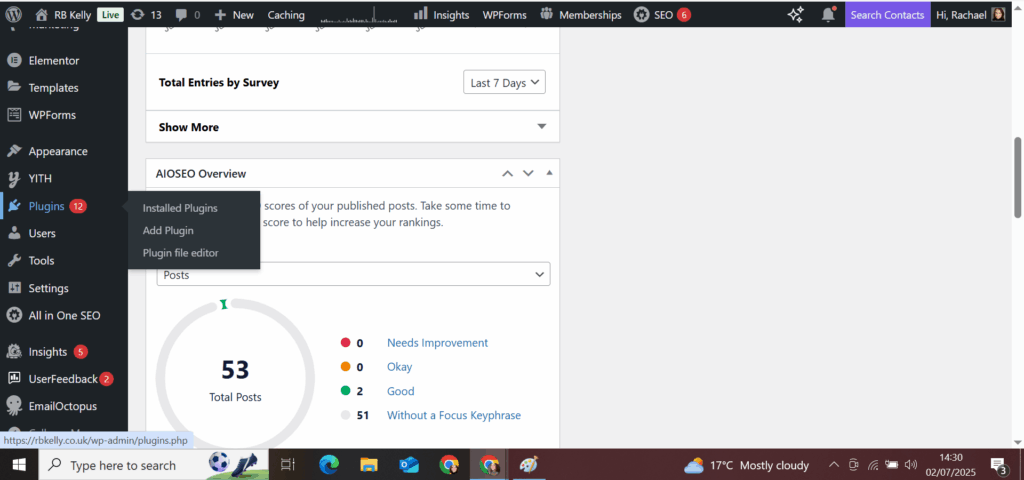
Click on Add Plugin, and this will take you to a new page.
On the Plugins page, type Elementor Website Builder in the search box on the top left and search. (Note that I typed in the wrong thing and WordPress still knew what I meant…)
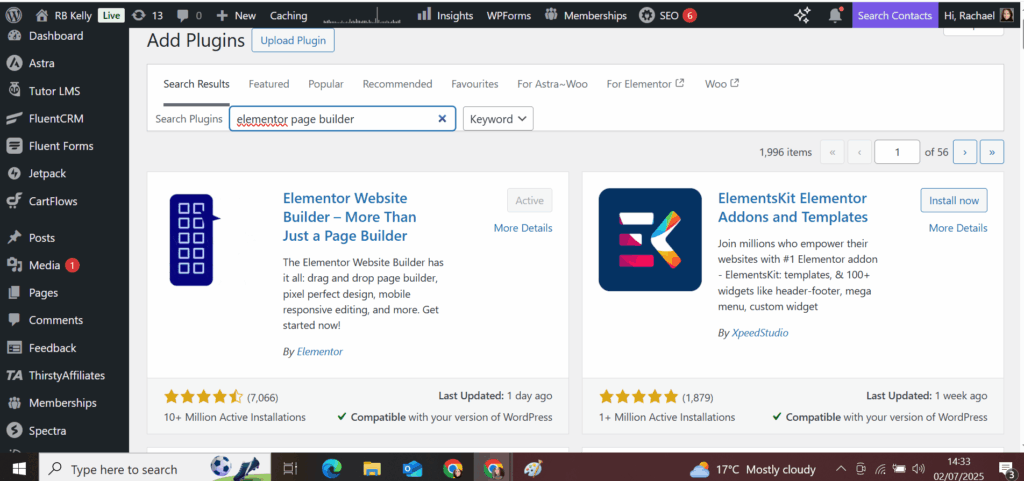
You’ll see that I already have it installed, but on your page it will have an Install Now button, which you should click.
After installation is complete, you’ll need to click Activate before Elementor will be able to run on your website, but if you forget to do this, it’s easy to fix. In the Plugins menu dropdown, you’ll see a menu option titled Installed Plugins—click this, scroll down to whichever plugin you need to activate, and click activate.
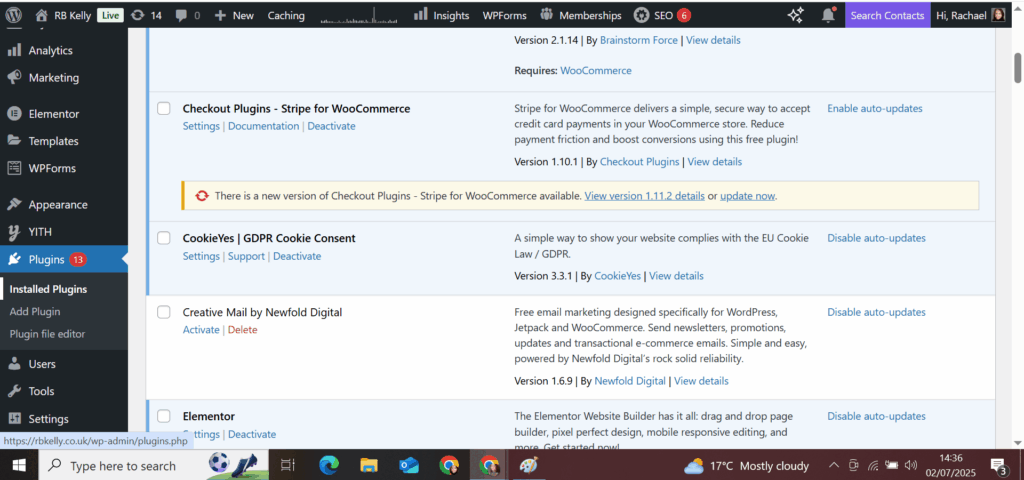
Step 6: Install the Starter Templates plugin
This is another helpful “nice to have” in your back pocket—it’s another free plug-in, and this time it offers a library of pre-designed pages that you can edit with your own images and text. You could absolutely use these templates to design your entire website if you choose—I used one as the basis for my home page, while I was still finding my feet with WordPress and it took a whole heap of anxiety out of the process. Once I got more comfortable with the system, I started to find the templates a bit too restrictive and started using Elementor more extensively, but both are great tools.
So, you should still be on the Plugins page, having just installed and activated Elementor. Simply go back to the search box, type in Starter Templates, install and activate.
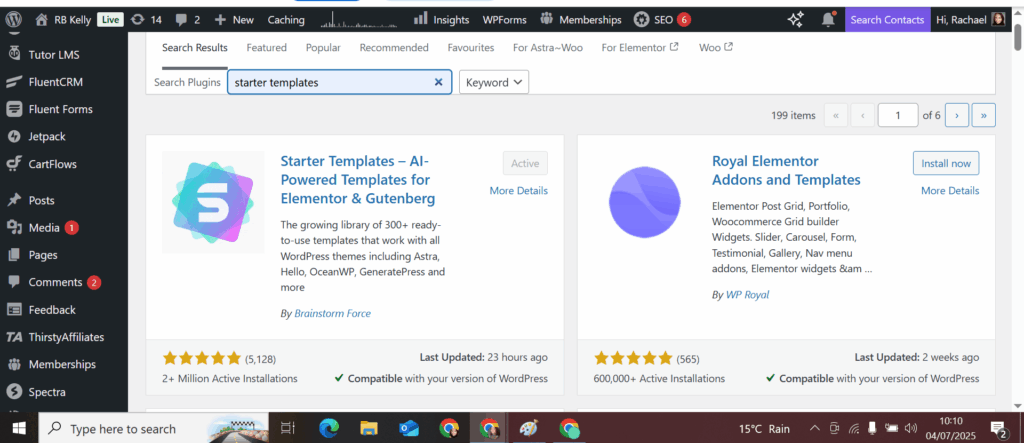
Now you’re ready to start creating your home page.
Step 7: Create your first page
We’re heading back to the WordPress dashboard again now, and this time we’re looking for Pages in the dashboard menu.
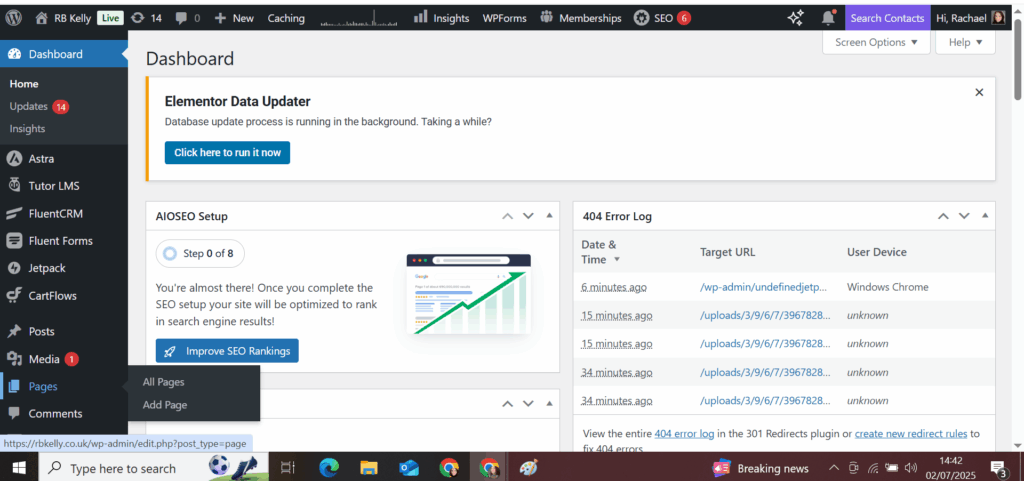
Click on Add Page (either in the menu or by clicking on Pages directly in the menu and clicking on Add Page in the new page that appears).
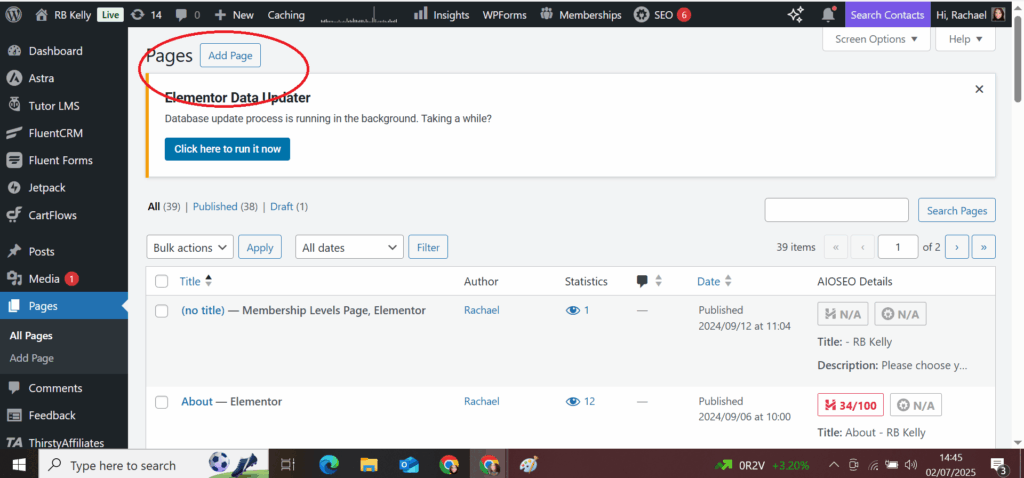
This will bring you to a page-creation interface. Start by giving this page a title—something like “home”. Type this in the Add title box and click Save draft.
Now click the blue button up top that says Edit with Elementor.
The Elementor editing screen will open.
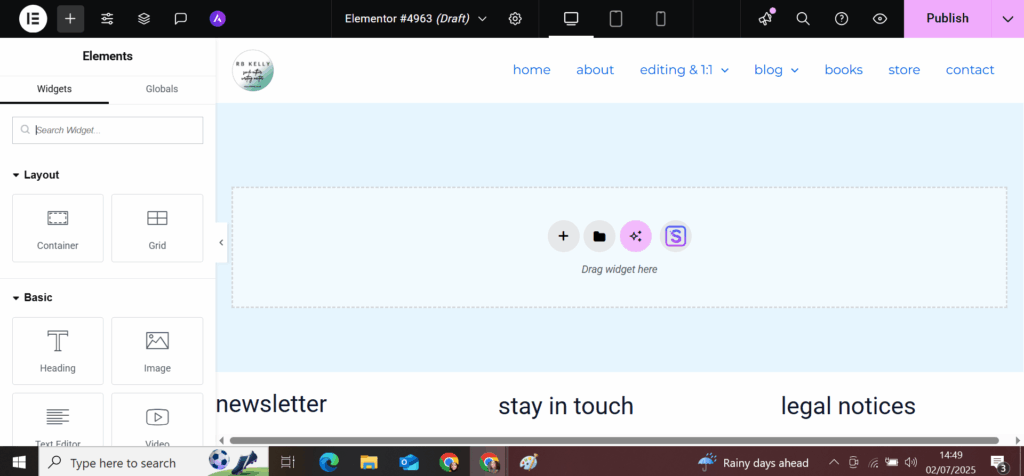
There are a few ways we can create your page now, depending on how much customisation you want to do.
Option 1: Designing from scratch
This is definitely the most labour intensive way to build a page, but it also offers the more customisability. And it’s really not too tricky, either.
On the left is a menu of elements called widgets—these include headings, images, text boxes, buttons and so on.
You’ll drag and drop these widgets to create your page, but first you need to give them something to drop into.
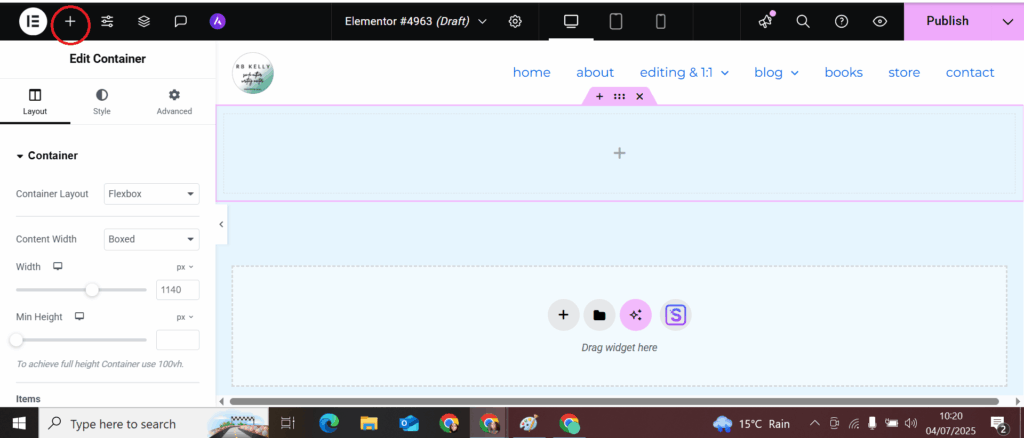
In the centre of the page, you’ll see a box with a few icons in it. Click the plus sign icon.
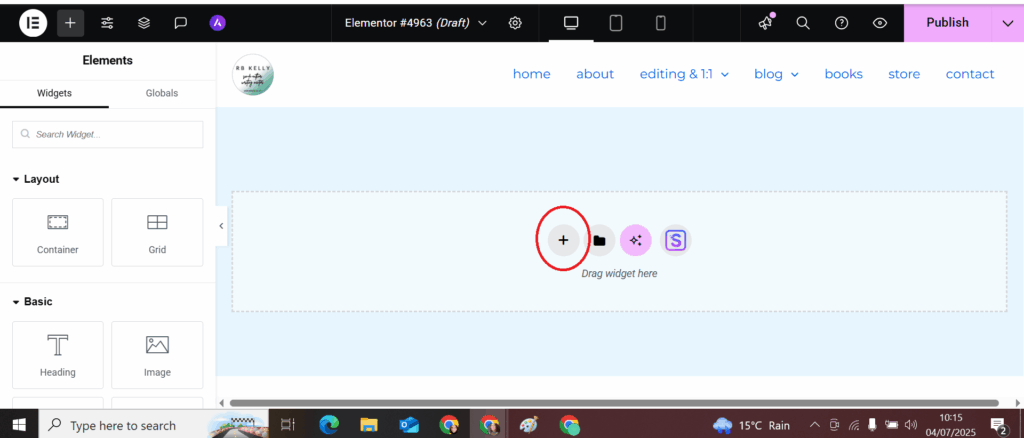
You now have two options—flexbox and grid. Either’s good; you can play about with this to your heart’s content, but for now, I’m going to go with flexbox.
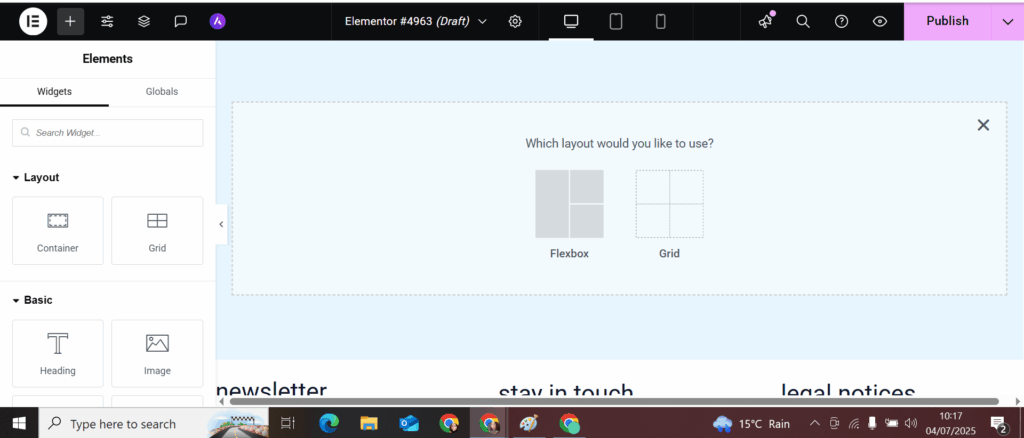
Next, you’ll need to choose a structure for your flexbox. The visual representations tell you all you need to know here—I’m going to go for a very basic single box structure aligned downwards.
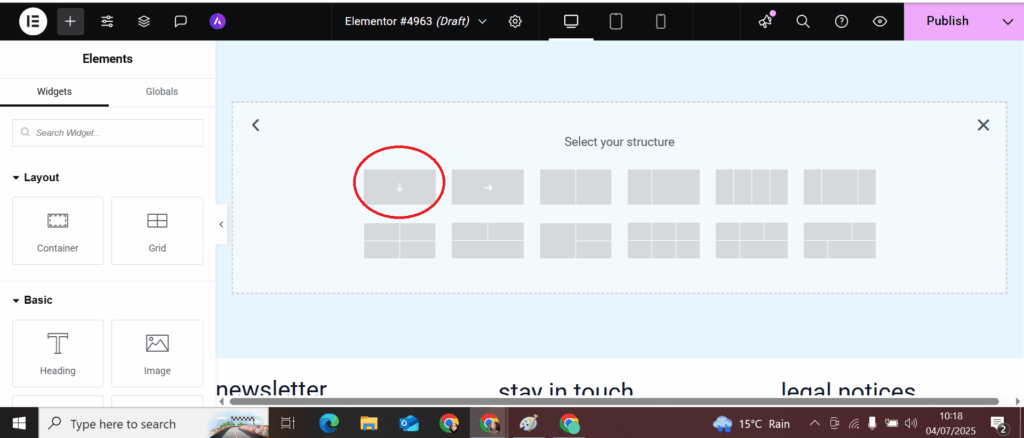
And now I’ve got a container in place, ready to drag and drop whatever widgets I want to use.
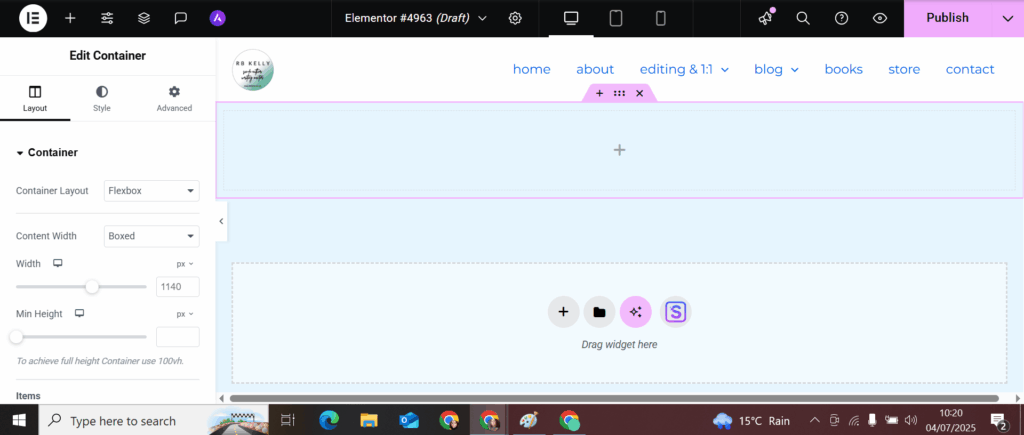
To do that, we need to go to the plus icon on the top left. Depending on your browser, when you hover over this icon, you might see the legend “add elements” appear. Click on this icon.
I’d suggest you start by dragging and dropping a container here from the menu. It will make the editing much easier, because you can easily add multiple elements into this container (here, I’ve added a heading and an image directly below: I’ve simply dragged the container into the page editor, then dragged a heading into the container, and dragged an image into the container below the heading).
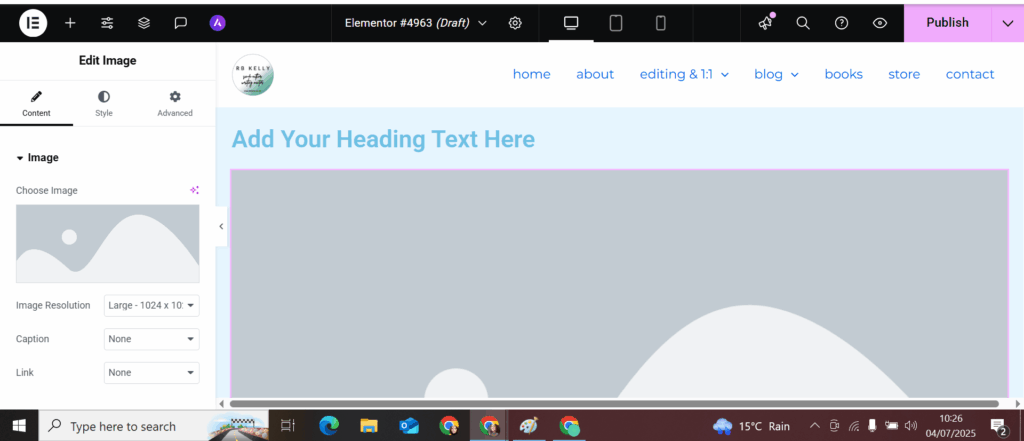
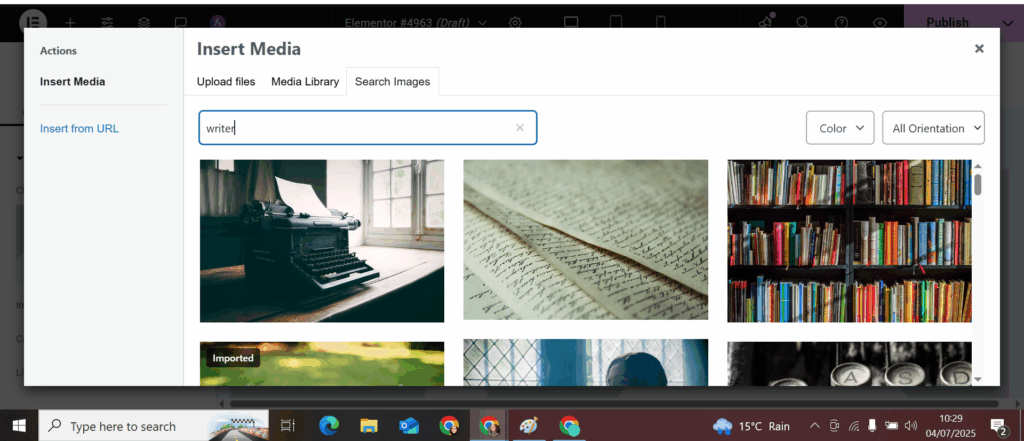
You edit individual elements in the block by clicking on that element (in this case the image) and changing the text or image via the editing box on the left of the screen.
For text, simply type directly into the editing box or copy/paste from elsewhere.
For images, when you click Choose Image, you’ll see a pop-up appear with the title Insert Media. The three tabs in this pop-up allow you to (a) upload your own image file (which will be saved to your Media Library), (b) choose an image you’ve already uploaded or saved to your Media Library, or (c) choose a free stock image from WordPress’s library (which seems to be sourced from Pexels). I’ve found these free images to be a valuable resource, though the insert function is very (very) slow.
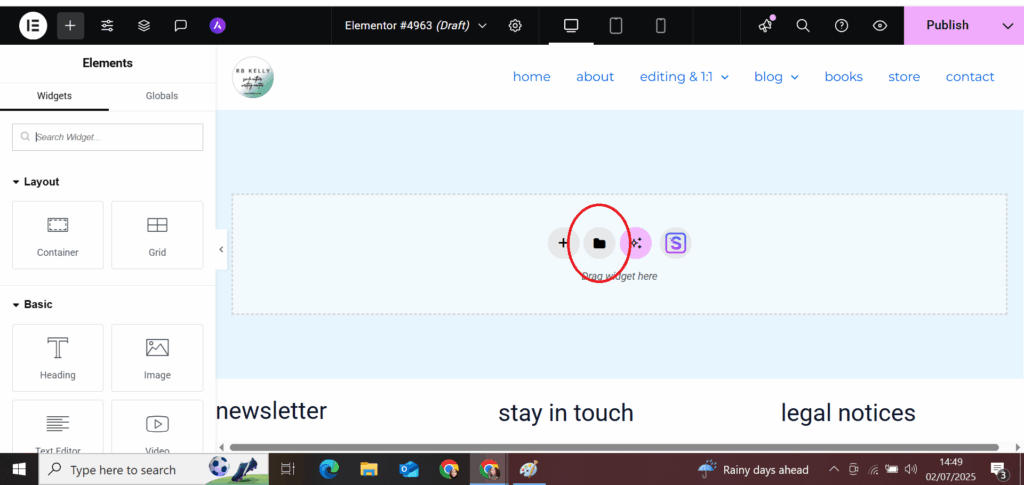
Option 2: Designing from a pre-set Elementor template
Instead of constructing your page with individual elements, you can insert Elementor’s pre-built blocks of these elements. You’ll find these template blocks by clicking the template icon.
Scroll through the blocks until you find one that works for your page, then click Insert.
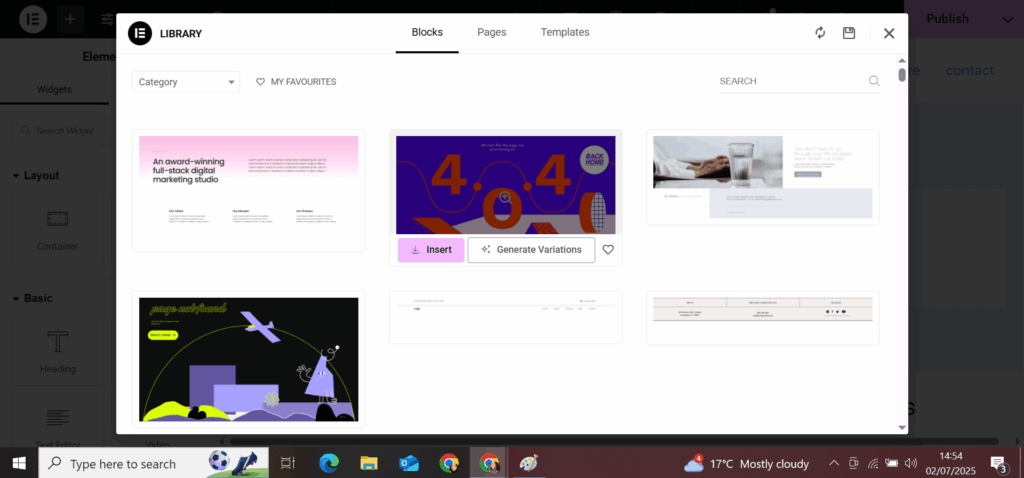
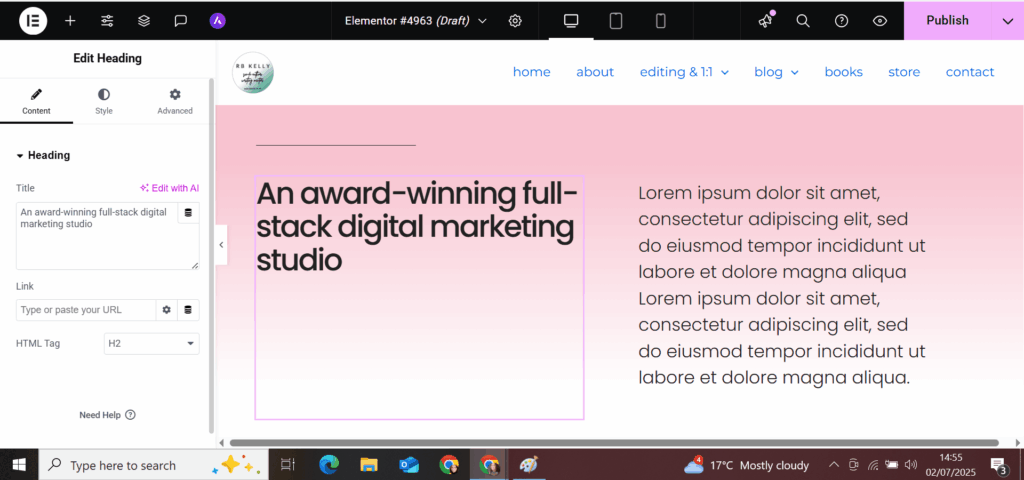
The template block will appear on your page, populated with lorem ipsum text and/or stock images, which you customise in the editing panel on the left (as in the image below).
Elementor also offers entire page templates—I personally think that Starter Template’s page templates are more visually appealing, but your mileage may vary. If you choose to use a page template, you’ll customise it in the same way, but I’m going to explore the process of designing from a page template with Starter Templates as the baseline.
Option 3: Designing from a Starter Template
This option is the quickest and least time consuming of the three, but it’s also the most restrictive, in that the margins and positions are already pre-fixed, and if your word count or image doesn’t fit neatly into the design, it’s likely to throw the whole thing out of alignment. With that said, it’s a very straightforward way to get a page that looks great, if you don’t mind editing and trimming your content to fit the parameters.
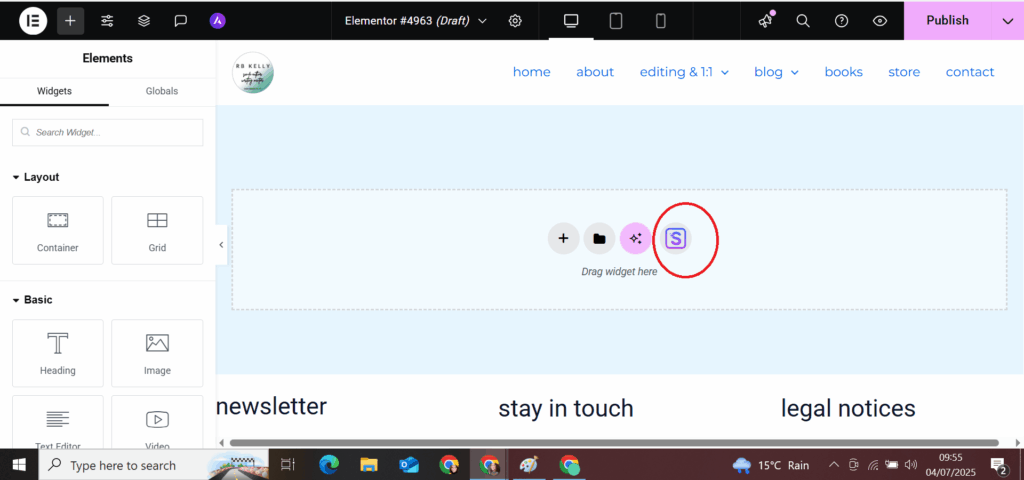
Start by clicking the Starter Templates icon (if it doesn’t appear alongside the other icons, you might need to double check it’s activated on the plugins page).
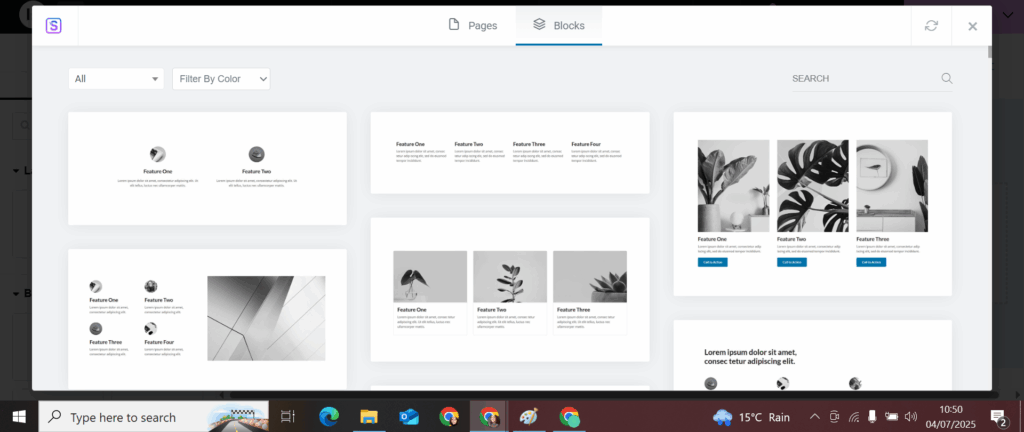
You’ll see a pop-up appear with two tabs: pages and blocks (below).
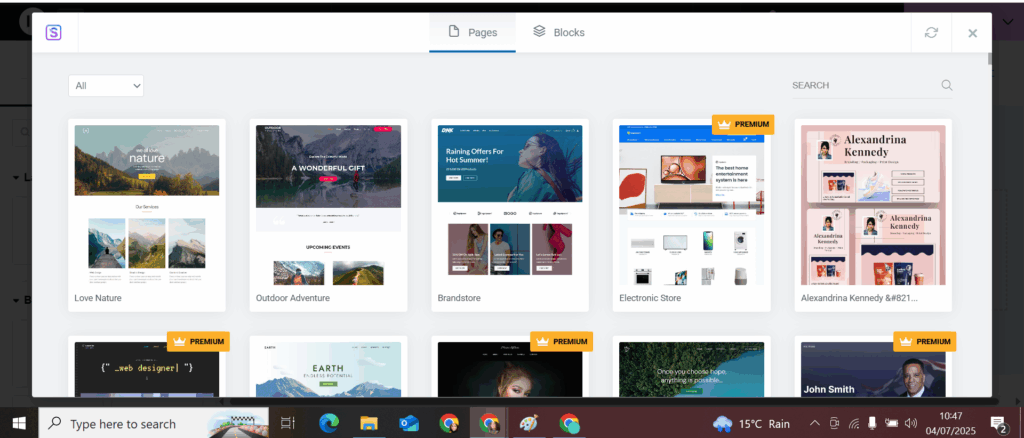
Pages are complete, pre-designed page templates. Many of them are free, but some of them require upgrading to the premium version of the plugin. I don’t necessarily think you need to do that—I’ve managed just fine with the free version—but if one of the premium pages catches your eye and looks perfect for your site, you might want to invest.
Click on one that appeals, and you’ll see that you now have the option to choose which kind of page you want to create.
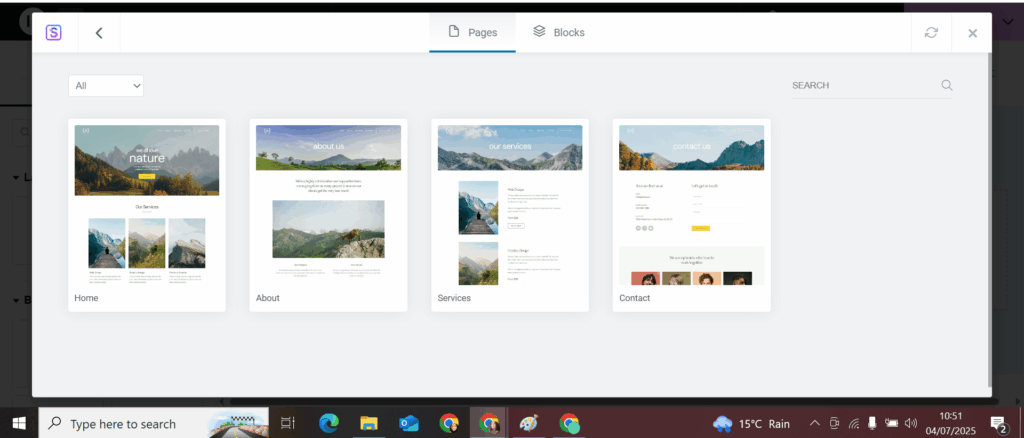
I used the “we all love nature” home page template as a base for my home page, and then kind of messed around with the settings until I got it the way I wanted.
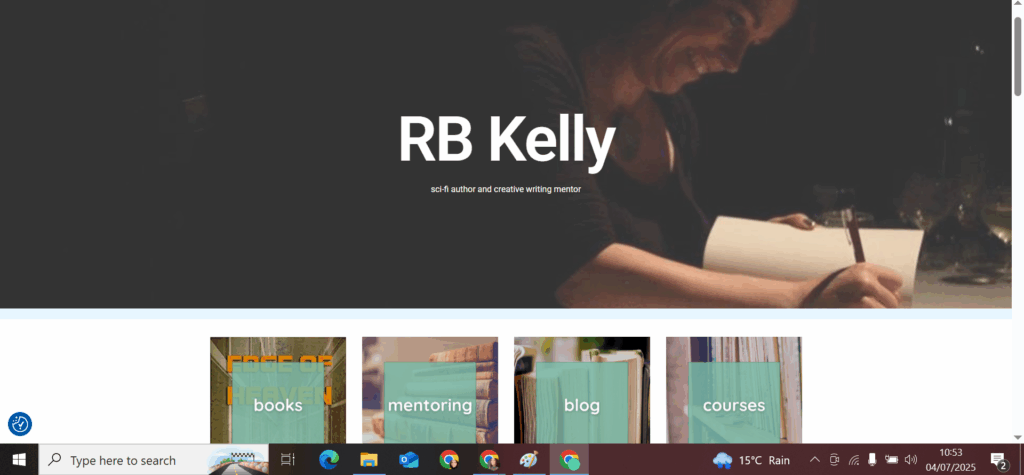
You can still see, I think, the Starter Template’s DNA in the final version, but I’ve very much made it my own. (If you scroll down on my home page, you’ll see that I’ve also added a number of widgets from Elementor Pro—like a carousel of my books and a grid of my most recent blog posts—that weren’t included in the original template. But you best believe I didn’t do this straight away—my initial home page was much more like the template. The more confident I got, the more able I felt to experiment, but the template helped me build that confidence in the first place.
You can also choose to insert individual blocks, which work in the same way as the Elementor template blocks. Elementor’s template blocks are, to my mind, more visually appealing, but the Starter Template blocks are more of a blank slate, as it were, so I’ve tended to use a combination of both.
You insert and customise Starter Template blocks in exactly the same way as a Starter Template page template or an Elementor block.
Whichever method you choose—or whichever combination of methods you choose—make sure to save your draft regularly by going to the Publish button at the top right of the screen and clicking Save Draft from the dropdown. (Don’t be me and lose three hours of work when the internet has a wobble.)
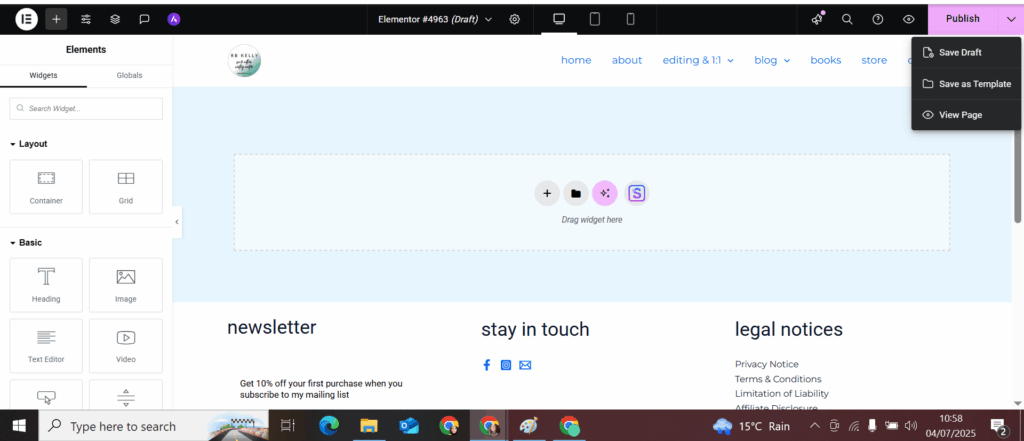
When you’re happy with how the page looks, go to the same Publish button at the top right of the screen, but this time click on it directly to make the page live.
Step 8: Set your new page as the home page
By default, WordPress uses your latest blog post as the home page. That’s great if the primary function of your website is to host your blog, but not ideal for an author website. (If you decide to have an active blog on your website, you can configure your home page to have a section displaying the latest blog posts, but your home page needs to be focused on telling a visitor about you as an author, so we need more than just a blog post here.)
So the next step is to tell WordPress to use the page you just created as your home page instead.
Here’s how:
In your WordPress dashboard menu on the left, click Settings and then select Reading from the dropdown. This opens a new page called Reading Settings.
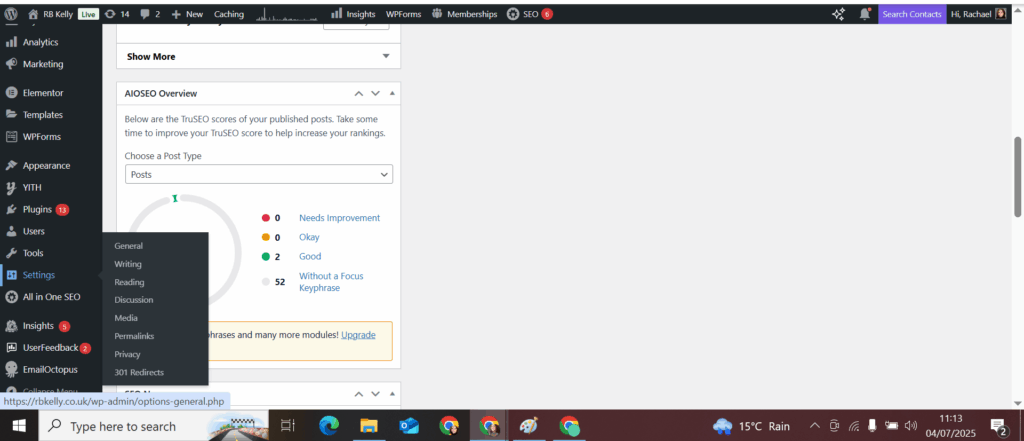
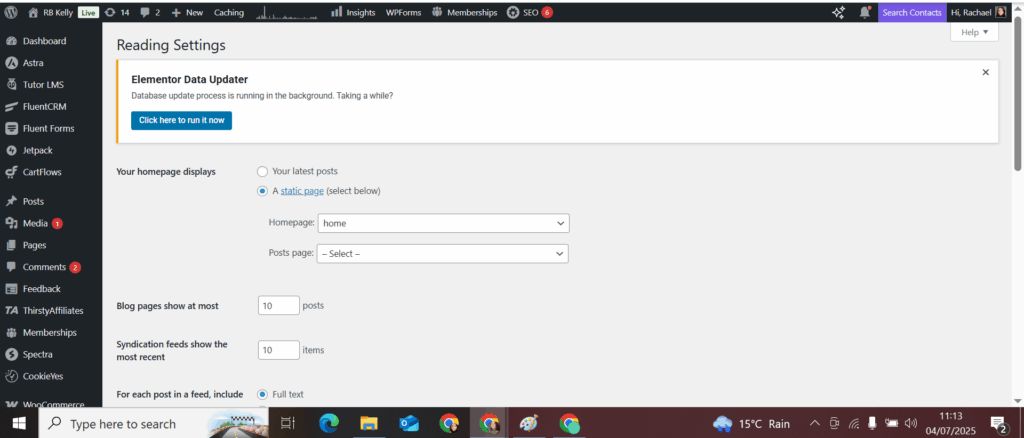
At the top, look for the section titled Your homepage displays.
Select the option A static page.
Under Homepage, click the dropdown menu and select the page you just created (e.g. home). It should look like this:
Scroll down and click Save Changes.
Now, when people visit your website’s main URL, they’ll see your new home page.
And now… you’ve got the beginnings of an author website. You’ll need to add the other key pages (and you’ll get quicker each time as you get more and more familiar with the tools), but, regardless, from now on, if anyone is searching for you online—your home page is enough to stake out your corner of the internet.
You’re online.
Your Author Website—A Quick Reference Guide

So, that was a lot of words. Here’s a quick recap of the steps involved:
- Choose and register your domain name: Pick a memorable, easy-to-spell address that reflects your author brand.
- Get reliable web hosting: Find a trustworthy host where your website files will live, ensuring your site is fast and secure.
- Select WordPress as your platform: It’s flexible, scalable, and puts you in control now and as your career grows.
- Choose a theme and install plugins: Free is fine, but you might choose a premium option if it offers features that you prefer. Elementor and Starter Templates are two key plugins that will make your build much easier.
- Build the essential pages: Start with your home page and get it up and running first. Then follow up with an About page, a Books (or Works in Progress) page, a Contact page—and maybe consider a Blog or an Events page when you’re ready.
Lots of aspects of the website creation process are going to feel frustrating, scary, confusing, or as though they’ve been sent to test the limits of your patience. (Believe me, I know.) But again: I can’t overstate just how uneducated I am on all things coding, and I made it through and out the other side. You will too.
And it’s worth it. It’s really, really worth it.
Take it one step at a time. You don’t have to do everything at once or be perfect from the start. Every author’s website evolves over time—just like your writing. And that’s the beauty of it all.
What are you struggling with as you create your author website? Let me know in the comments!
Read next